Custom Fine Tuning Presets UI
This guide shows how to build your own Fine Tuning preset selection UI: the state to display, and how to apply the user's selection. You are free to choose the UI components which best suit your design.
Requires opt-in to @MsdkInternalApi
Since MSDK 12.0.0 the available Fine Tuning presets are exposed through MimiUpDownPresetParameterDataSource, which is annotated @MsdkInternalApi. To read or reload the preset bundle you must opt in - for example by adding @file:OptIn(MsdkInternalApi::class) to the top of your file (import io.mimi.sdk.common.annotations.MsdkInternalApi). This API may change in a future release.
Introduction
"Fine Tuning" is an MSDK feature which provides the user with a selection of possible personalization presets, from which they can select their preferred sound personalization experience.
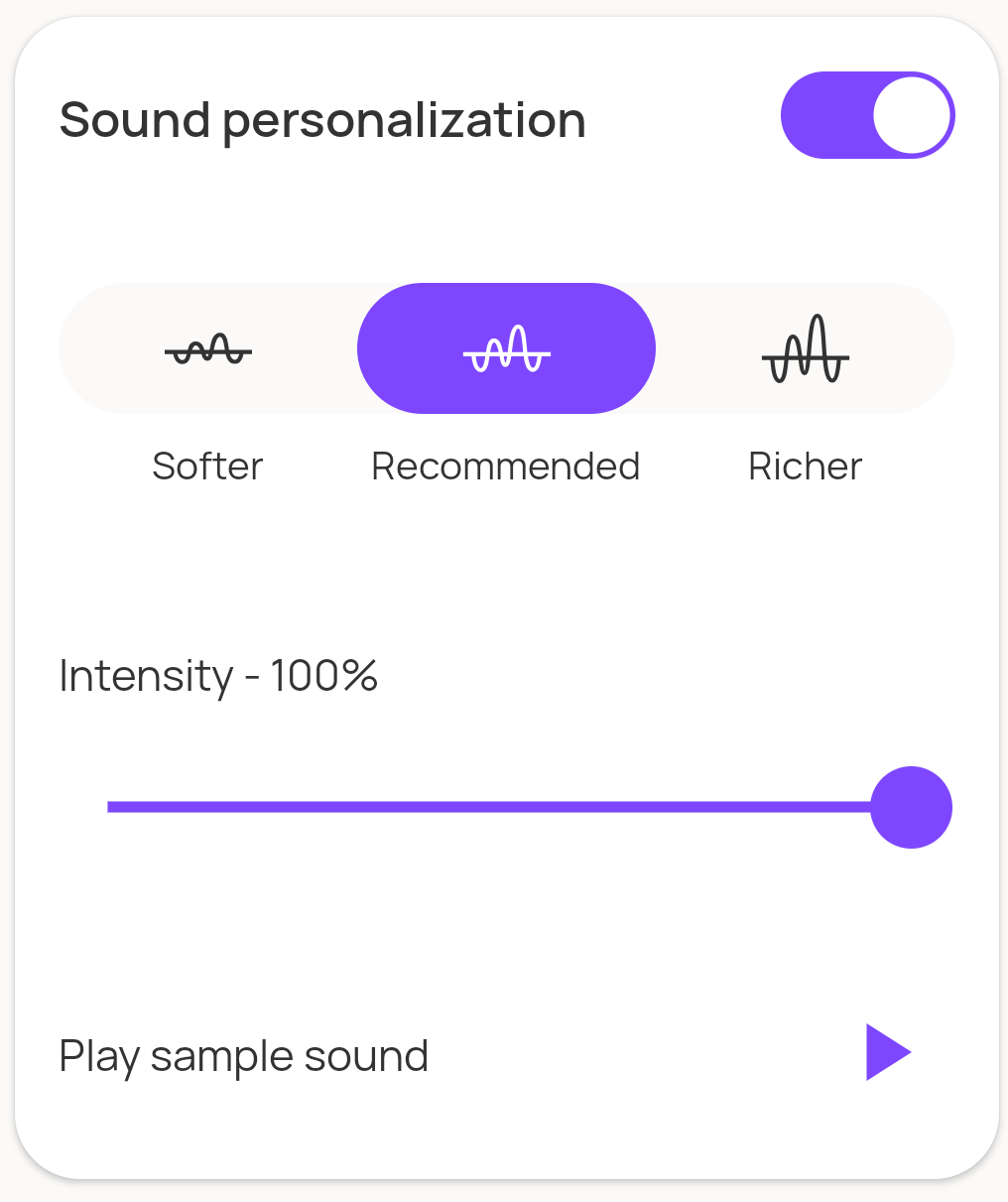
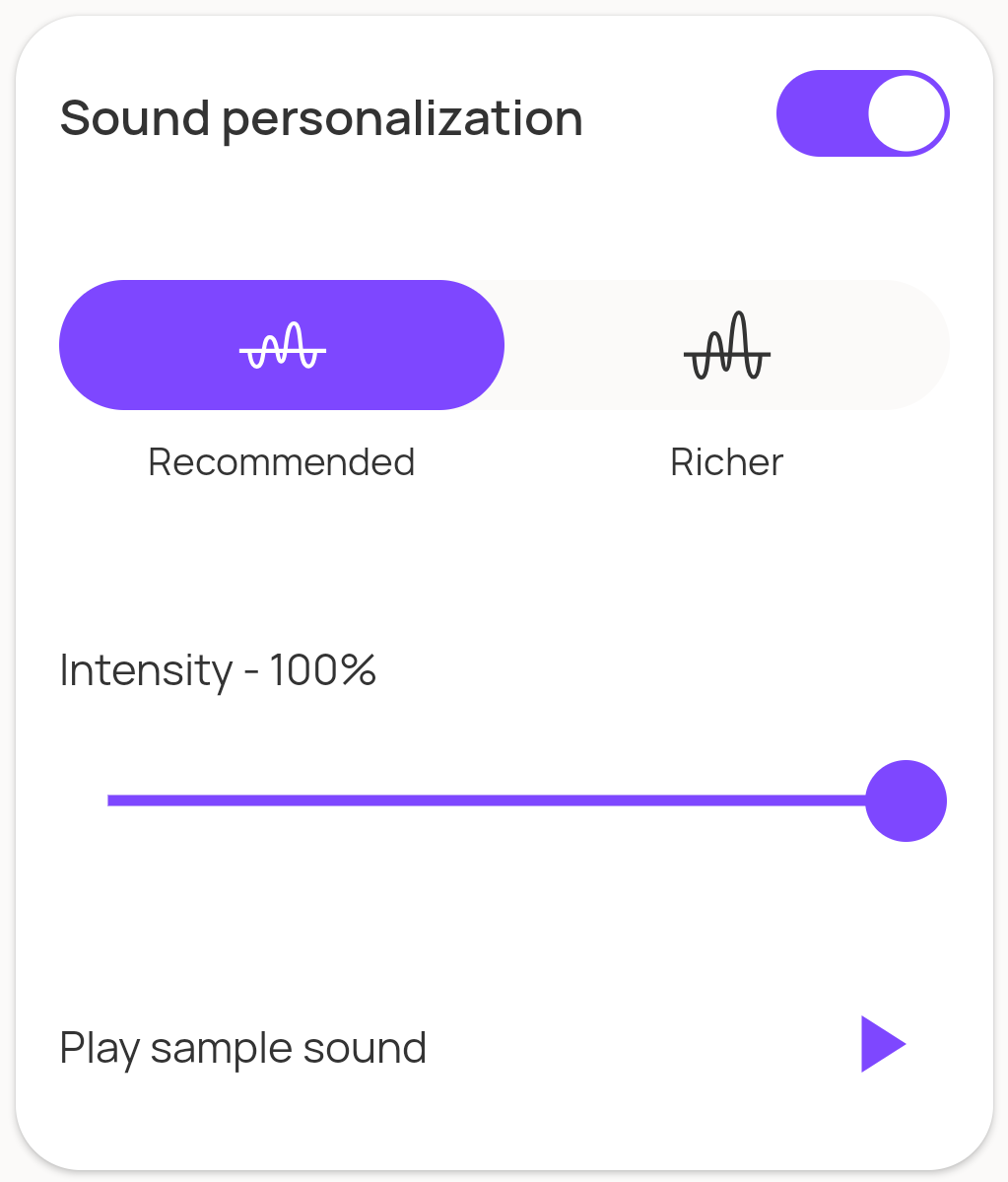
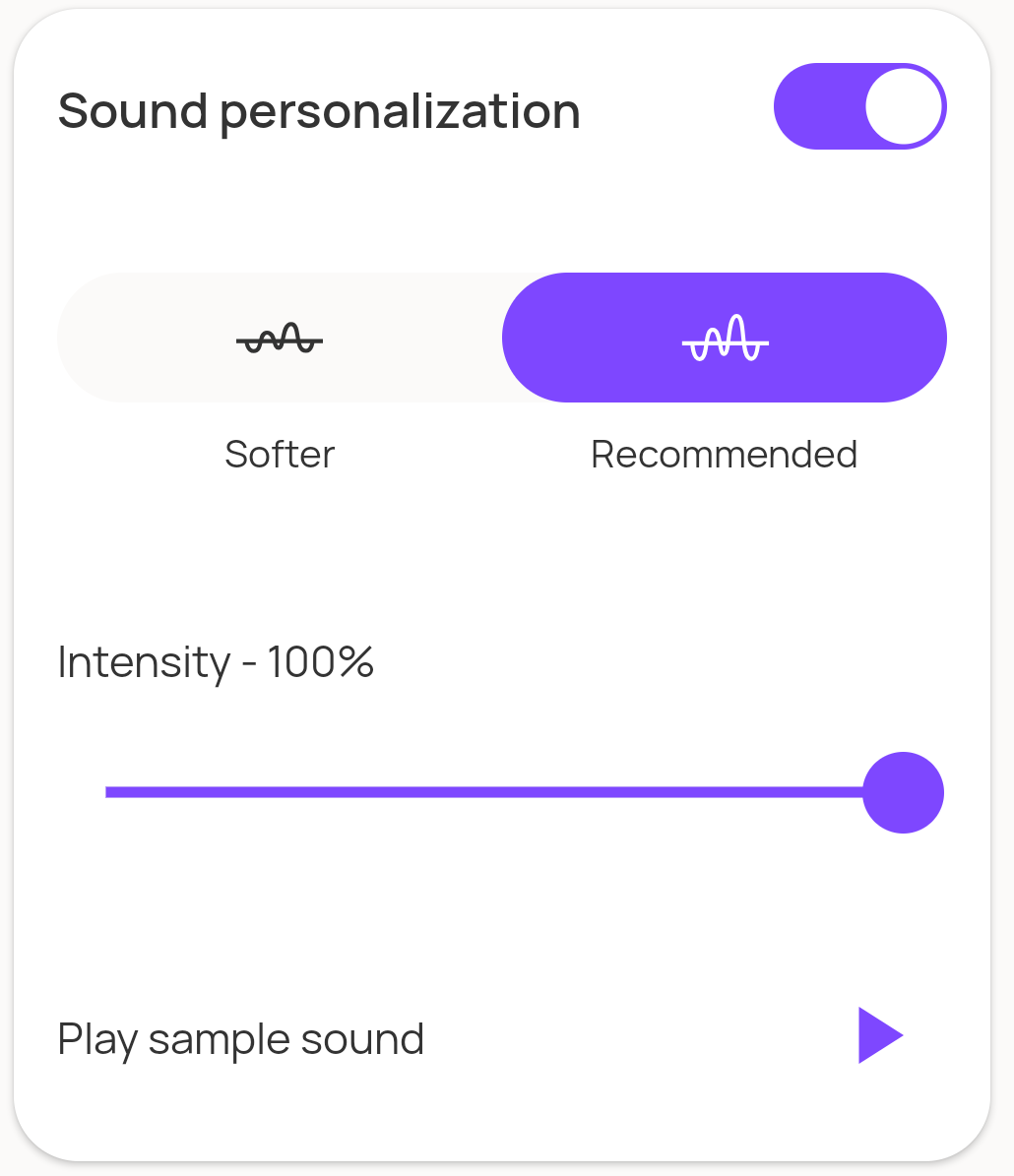
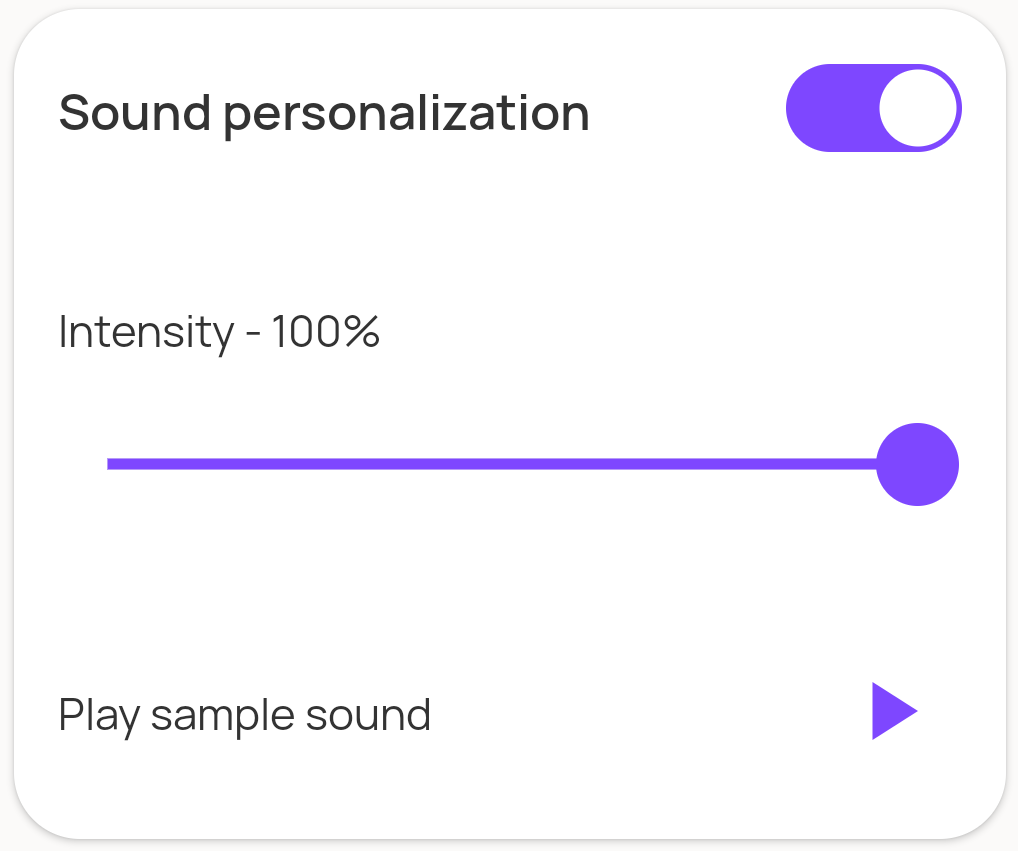
In the standard Mimi Profile UI, the Fine Tuning feature is incorporated into the "Sound personalization" profile card.
The available Fine Tuning preset options may include:
- Recommended
- Richer
- Softer
The available presets depend upon the user's hearing assessment, so not all presets options are available in all cases, as shown in these screenshots of Mimi Profile:
Note
The term "Fine Tuning" is generally used when referring to the user-facing aspects of the feature, however in places the MSDK APIs use the term "Up Down" synonymously.
Understanding UpDown Presets
The UpDownPreset class contains the available fine-tuning personalization presets retrieved from the Mimi backend.
It is defined by io.mimi.sdk.core.model.personalization.updown.UpDownPreset, and it contains up to three different presets:
default- the "Recommended" presetup- the "Richer" presetdown- the "Softer" preset
If a preset component value is null, then that preset is not available for the current user. Each available preset carries a payload string.
The UpDownPreset state is exposed on the MimiUpDownPresetParameterDataSource that backs the PersonalizationModule preset ProcessingParameter of the active ProcessingSession.
Building a custom Fine Tuning UI
This section describes the individual steps required to create your own customized Fine Tuning UI experience.
Activate the ProcessingSession with FineTuning Personalization
To support the Fine Tuning feature, you must activate your app's ProcessingSession using PersonalizationModeConfiguration.FineTuning mode.
When using MimiProcessingConfiguration.Basic
For MimiProcessingConfiguration.Basic you need to explicitly configure the PersonalizationModeConfiguration for FineTuning:
val result: Result<ProcessingSession> = MimiCore.processingController.activateSession(
    MimiProcessingConfiguration.Basic(
        soundPersonalization = SoundPersonalizationFeatureConfiguration(
            // FineTuning mode
            mode = PersonalizationModeConfiguration.FineTuning(
                Fitting(TODO("Fitting is defined by your Processing system"))
            ),
            parameterConfiguration = TODO("Define your Applicators")
        )
    )
)
When using MimiProcessingConfiguration.Automatic
For MimiProcessingConfiguration.Automatic, the presetDataSource will use PersonalizationModeConfiguration.FineTuning by default.
Obtain the Fine Tuning preset data source
Once activated with FineTuning mode, the personalization module's presetDataSource is a MimiUpDownPresetParameterDataSource. The personalization module is reached via soundPersonalization.media (or soundPersonalization.voiceCall for voice-call personalization).
A small accessor keeps the rest of the code tidy:
// The active ProcessingSession (null until one is activated)
private val activeSession get() = MimiCore.processingController.activeSession.state.value

// The personalization module driving Fine Tuning - here, media personalization
private val mediaModule get() = activeSession?.soundPersonalization?.media

// The Fine Tuning data source, cast from the module's presetDataSource
private val fineTuningDataSource: MimiUpDownPresetParameterDataSource?
    get() = mediaModule?.presetDataSource as? MimiUpDownPresetParameterDataSource
Display the available Fine Tuning preset options
As the available Fine Tuning presets can vary, your custom UI will need to adapt accordingly to only offer the appropriate presets for selection.
The MimiUpDownPresetParameterDataSource exposes the current UpDownPreset values and their availability through its upDownPresets observable:
// Observe changes in upDownPresets to determine availability - if `null`, that preset type is not available.
coroutineScope.launch {
    fineTuningDataSource?.upDownPresets?.observe { upDownPresets: AsyncState<UpDownPreset?> ->
        // Extract the preset availability for each of the fine tuning options
        val isRecommendedAvailable = upDownPresets.value?.presets?.default != null
        val isRicherAvailable = upDownPresets.value?.presets?.up != null
        val isSofterAvailable = upDownPresets.value?.presets?.down != null

        // TODO - Update your UI state to reflect the preset availability
    }
}
You can also read the latest value synchronously via fineTuningDataSource?.upDownPresets?.state?.value.
Display the current Fine Tuning preset selection
Your custom UI also needs to show which preset is currently in use, by comparing the applied preset value to the available UpDownPreset. Observe both the preset ProcessingParameter (on the personalization module) and the upDownPresets value, as a change in either affects the interpretation of the current selection.
// Define an enum for the possible selection options
enum class PresetType {
    SOFTER,
    RECOMMENDED,
    RICHER
}
// Returns the selected `PresetType` given the current `UpDownPreset` bundle and applied preset payload.
fun getSelectedPresetType(
    upDownPreset: UpDownPreset?,
    presetParameterPayload: String?
): PresetType? {
    if (upDownPreset == null || presetParameterPayload == null) return null

    return with(upDownPreset.presets) {
        if (default?.payload == presetParameterPayload) PresetType.RECOMMENDED
        else if (up?.payload == presetParameterPayload) PresetType.RICHER
        else if (down?.payload == presetParameterPayload) PresetType.SOFTER
        else null
    }
}
The currently applied preset is the preset ProcessingParameter's value on the personalization module:
Then observe changes to both the preset ProcessingParameter and the upDownPresets observable, invoking getSelectedPresetType on each change and using the result to update your UI:
// Observe changes in the preset ProcessingParameter
coroutineScope.launch {
    mediaModule?.preset?.observe { presetState ->
        val currentUpDownPresets: UpDownPreset? =
            fineTuningDataSource?.upDownPresets?.state?.value
        val selectedPresetType: PresetType? =
            getSelectedPresetType(currentUpDownPresets, presetState.value?.payload)

        // TODO Update UI state with new selection: `selectedPresetType`
    }
}
// Observe changes in the upDownPresets
coroutineScope.launch {
    fineTuningDataSource?.upDownPresets?.observe { upDownPresets: AsyncState<UpDownPreset?> ->
        val currentPresetPayload = mediaModule?.preset?.value?.payload
        val selectedPresetType: PresetType? =
            getSelectedPresetType(upDownPresets.value, currentPresetPayload)

        // TODO Update UI state with new selection: `selectedPresetType`
    }
}
Apply the preset in response to user selection
When the user selects to change the current Fine Tuning preset, you apply the corresponding payload to the preset ProcessingParameter on the personalization module.
This example shows how to apply the Richer (Up) preset value:
// Take the payload for the user's selection from the corresponding `UpDownPreset` property.
// In this example, the user selected "Richer" (up).
// For "Recommended" use `presets?.default?.payload`; for "Softer" use `presets?.down?.payload`.
val richerPayload: String =
    requireNotNull(fineTuningDataSource?.upDownPresets?.state?.value?.presets?.up?.payload) {
        "User selected preset payload is not available!"
    }

// Build a PersonalizationPreset from the payload (public constructor).
val richerPreset = Personalization.PersonalizationPreset(richerPayload)

// Apply it to the preset Parameter of the personalization module.
val result = coroutineScope.async {
    mediaModule?.preset?.applyValue(richerPreset)
}

// Depending on your UI requirements you may handle the `result`, although an apply failure
// is also reported through the `preset` `ProcessingParameter` state.
Reload the presets
The available presets can be refreshed from the backend via the MimiUpDownPresetParameterDataSource load function. As a side effect it updates the upDownPresets bundle, and it returns the newly applicable preset given the one you pass in (typically the current selection):
coroutineScope.launch {
    // The currently applied preset, as read above.
    val current: Personalization.PersonalizationPreset? = mediaModule?.preset?.value

    // Reloads the bundle and returns the newly selected preset.
    val newlySelected: Personalization.PersonalizationPreset? = fineTuningDataSource?.load(current)

    // The bundle may have changed as a result of the load() call.
    val refreshedBundle: UpDownPreset? = fineTuningDataSource?.upDownPresets?.state?.value

    // TODO Update your UI state with `newlySelected` / `refreshedBundle`
}
API changes
MSDK 12.0.0
| Before (≤ 11.x) | Now (12.0.0+) |
|---|---|
MimiCore.personalizationController.upDownPresets |
<module>.presetDataSource as MimiUpDownPresetParameterDataSource → .upDownPresets (@MsdkInternalApi) |
activeSession.preset |
activeSession.soundPersonalization?.media?.preset |
MimiCore.processingController.activate(...) |
MimiCore.processingController.activateSession(...) → Result<ProcessingSession> |
MimiProcessingConfiguration(personalization = PersonalizationConfiguration(...)) |
MimiProcessingConfiguration.Basic(soundPersonalization = SoundPersonalizationFeatureConfiguration(...)) |
payload.toPersonalizationPreset() (@MsdkInternalApi) |
Personalization.PersonalizationPreset(payload) (public constructor) |
MSDK 13.1.0
| Before (≤ 13.0.x) | Now (13.1.0+) |
|---|---|
preset.apply(value) |
preset.applyValue(value) |
MimiProcessingParameter.apply(value) was renamed to applyValue(value) to avoid confusion with the Kotlin standard library's apply scope function. The behaviour is identical. apply is deprecated and still works, but it will be removed in a future release, so migrate to applyValue.